
How to Mirror a Windows PC to Apple TV (Updated 2026)
Step-by-Step Guide to AirPlay Mirroring a Windows PC to Apple TV
AirPlay Mirroring your PC to your Apple TV has never been easier than with AirMyPC. Whether you want to stream videos, display presentations, or simply extend your desktop, AirMyPC offers a seamless and efficient solution. Follow our comprehensive guide to get started.
1. Download AirMyPC
To AirPlay mirror a Windows PC to Apple TV, Chromecast, or an AirPlay 2–enabled TV, start by downloading AirMyPC - the AirPlay sender client for Windows.
Go to the AirPlay for PC download page and click the Download button.
2. Install AirMyPC
The installer file you have downloaded will be named AirMyPC.exe.
To install AirMyPC, run the installer file to launch setup.
Accept the license agreement and click through the installer using the ‘Next’ button.
After installation completes, AirMyPC will start automatically. You will see the orange AirMyPC icon on your desktop and in the Windows system tray  next to your computer clock.
3. Mirror Stream Your Computer Screen to Apple TV
While AirMyPC is running, click the orange AirMyPC tray icon next to your computer clock.
All AirMyPC operations - including Apple TV and Chromecast device selection, mirroring, and opening settings - are managed from this tray icon menu.
The tray menu will automatically scan for online Apple TV and Chromecast devices. Select the receiver device you want to stream to.
If AirMyPC does not find your Apple TV or Chromecast, refer to the troubleshooting FAQ.
If you have multiple displays connected to your PC, AirMyPC allows you to choose which specific monitor to mirror. Once selected, choose to mirror your screen only, audio only, or both screen and audio together.
While active streaming is in progress, the tray icon color changes from orange to blue.
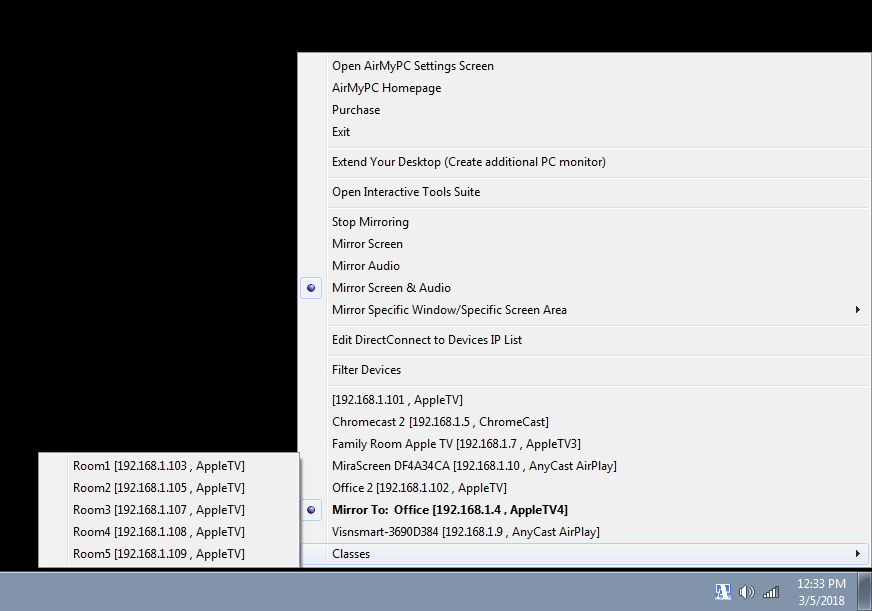
As shown in the menu above, multiple Apple TV, Chromecast, and AnyCast receivers can be selected or grouped into multi-room receiver profiles.
In this example, AirMyPC is set to mirror the "Office" Apple TV - both screen and audio.
4. Review AirMyPC Settings
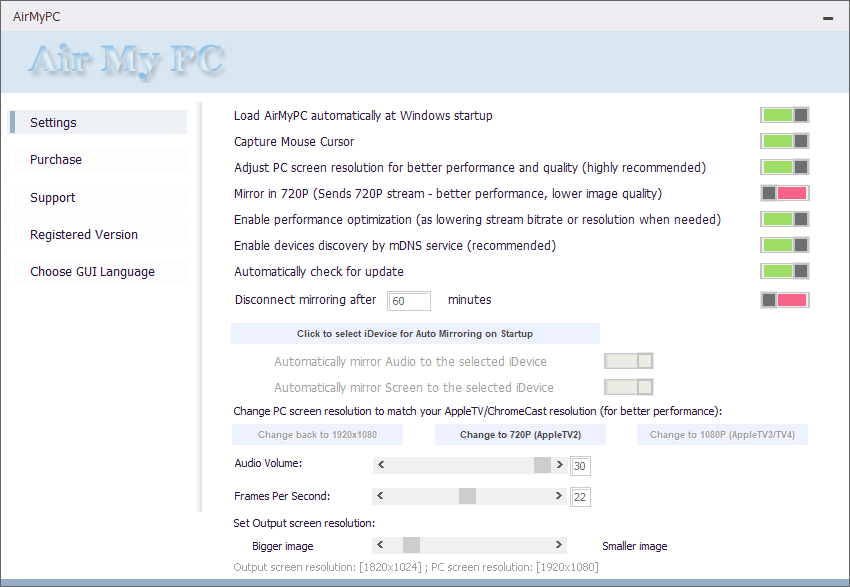
From the tray menu, click "Open AirMyPC Settings Screen".
Here you can configure AirMyPC to launch automatically on Windows startup, adjust streaming quality and output resolution, and toggle display of the mouse cursor on your TV screen.
5. Turn Your TV into an Interactive Wireless Whiteboard
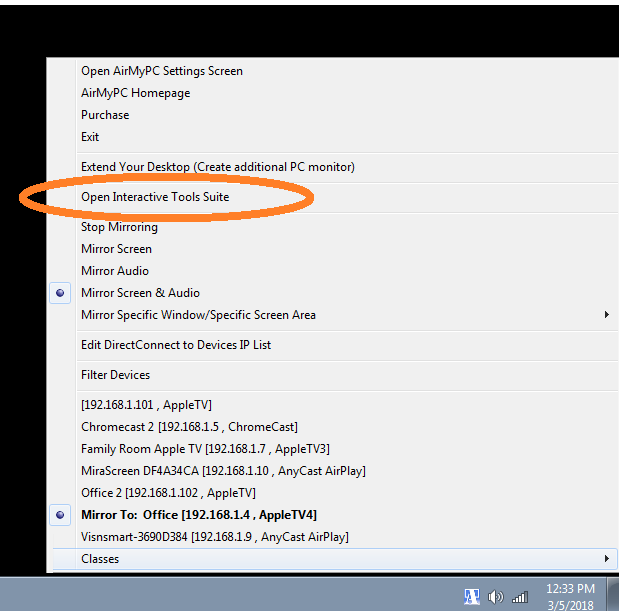
To launch the Education Interactive Tools Suite, start screen mirroring, click the AirMyPC tray icon, and choose "Open Interactive Tools Suite".
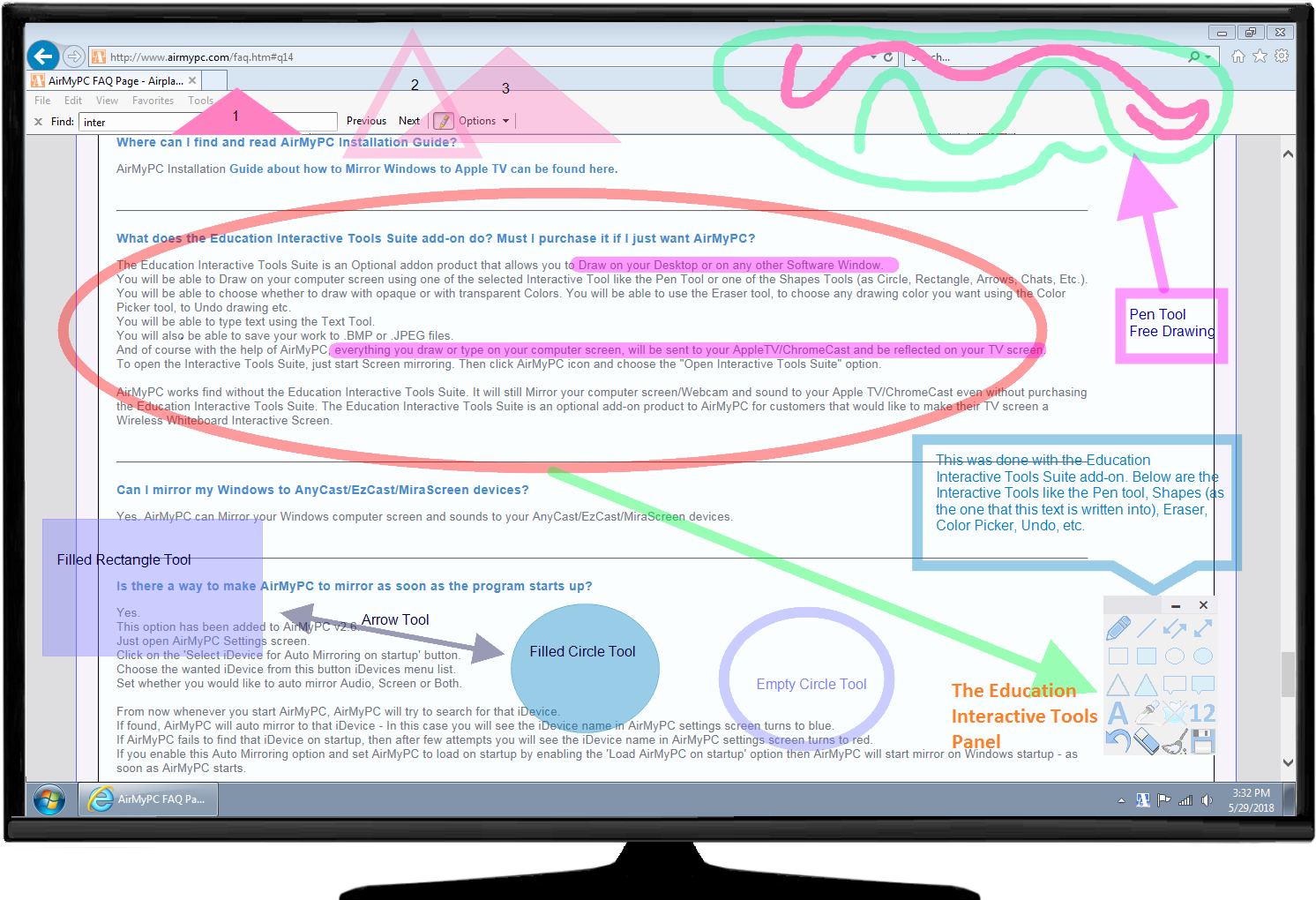
The interactive toolbar lets you draw over your live stream using pens, lines, shapes (circles, rectangles, arrows, callouts), and custom text inputs. You can also save annotations as image files (.BMP / .JPEG).
Everything drawn or typed on your PC screen is reflected in real time on your Apple TV or Chromecast display.
Conclusion
This guide covers the full process for AirPlay mirroring your Windows PC to Apple TV or Chromecast using AirMyPC.
Ready to try it? Download the free 7-day trial or purchase AirMyPC. For common issues or hardware configuration help, visit our comprehensive FAQ page.