
|
AirMyPC - AirPlay For Windows & Cast Client for Chromecast (AirPlay for Windows) |
AirMyPC - AirPlay Mirror Windows computer screen and sound to your Apple TV Or Chromecast
AirMyPC Frequently Asked Questions:
| Answers: |
Can you give me step-by-step instructions on how to mirror my Windows PC to Apple TV?1. Download and install AirMyPC from the download page. 2. Click the AirMyPC tray icon (near your computer clock) and choose the Apple TV or Chromecast device you'd like to mirror to. 3. Choose one of the mirroring options, such as Mirror Screen, Mirror Screen & Audio, or Mirror Audio. 4. Your PC will now be mirrored to your Apple TV. The full guide on how to AirPlay mirror your PC to Apple TV can be found here. |
When I click AirMyPC tray icon I see "No devices were found". How do I make AirMyPC find my Apple TV/Chromecast?After you've verified that your Apple TV/Chromecast and your computer are both connected (have an IP address) and are both connected to the same Wi-Fi network, under the same subnet, there are a few procedures you should try.Let's start with the easiest ones: First, just give AirMyPC a bit more time to find your devices. If AirMyPC still hasn't found your device after a minute, then: 1) For AnyCast/EzCast/MiraScreen (which should be in AirPlay mode, not Miracast mode): Make sure your AnyCast/EzCast/MiraScreen is connected to your Wi-Fi network (you set your Wi-Fi password into the AnyCast/EzCast/MiraScreen settings screen). If that doesn't help, try connecting to the AnyCast/EzCast/MiraScreen's own Wi-Fi network instead. To do that, choose the AnyCast/EzCast/MiraScreen Wi-Fi network from the Wi-Fi list by pressing the Wi-Fi tray icon near your computer clock and selecting that network. Wait a few seconds, then press the AirMyPC tray icon to search for your AnyCast/EzCast/MiraScreen devices again. 2) For Apple TV: Press the middle button on your Apple TV remote to wake it up. Wait a few seconds, then click the AirMyPC tray icon again to find your Apple TV. (If that still doesn't work, try restarting AirMyPC: click the AirMyPC tray icon, choose Exit, then launch AirMyPC again from the desktop icon.) If that didn't help: 3) Try uninstalling "Bonjour" from Windows Add/Remove Programs, then exit AirMyPC (tray menu > Exit) and run it again - in most cases this solves the issue. If that didn't help: 4) Restart your computer (this restarts your Wi-Fi driver). After restarting, AirMyPC should find your Apple TV. If that didn't help: 5) For Apple TV: Check that AirPlay is enabled (Settings > AirPlay), then restart your Apple TV (Apple TV 4/4K: Settings > System > Restart; Apple TV 3 and earlier: Settings > General > Restart). Once your Apple TV has reloaded, wait a minute and then retry mirroring with AirMyPC. If that didn't help: 6) Most likely, your firewall is blocking AirMyPC or the "Bonjour" service (if you have it installed). You should allow both AirMyPC and the "Bonjour" service (again, if installed) through your firewall - whether that's a third-party antivirus firewall or Windows Firewall. If you're using Windows Firewall, click here to learn how to allow AirMyPC through it. Make sure to allow AirMyPC (and 'Bonjour' if installed) on both "Private" and "Public" networks. If that didn't help: 7) Restart your network/router. Once it has reloaded, wait a minute and then retry mirroring with AirMyPC. If that still didn't help: Some routers are set to block multicast traffic. This will prevent AirMyPC from finding your Apple TV/Chromecast/AnyCast/EzCast/MiraScreen. If none of the above helped, or if your network doesn't support mDNS (multicast traffic), you can use the DirectConnect option. The DirectConnect option lets you enter your Apple TV's IP address (or addresses) into the DirectConnect list. AirMyPC can then use these IP addresses to find your Apple TV/Chromecast without mDNS/Bonjour. To add an IP address to the DirectConnect list, click the AirMyPC icon. In the AirMyPC tray menu, choose Edit DirectConnect to Apple TV/Chromecast List. In the input box that appears, enter your Apple TV/Chromecast IP address. If you have more than one Apple TV/Chromecast device, put each IP address on a new line. If you're entering a Chromecast IP address, add the '@' character to the beginning of it (example: @192.168.2.6) so AirMyPC knows it's a Chromecast device rather than an Apple TV (use '*' for a Chromecast-Audio/Google Nest Mini device; example: *192.168.2.6). If you're adding an AnyCast/EzCast/MiraScreen device, add '&' as a prefix to the IP address. When you're done, save. You can also give each device a name in addition to its IP address. For example, if your device's IP is 192.168.2.7 and you'd like to name it 'Toms Room' to identify it, set it as [Toms Room 192.168.2.7] or as [Toms Room @192.168.2.7] for a Chromecast device, or as [Toms Room &192.168.2.7] for an AnyCast/EzCast/MiraScreen device. You can even group your devices: {GroupA [Office 192.168.2.11] [Lab 192.168.2.12]} {GroupB [Lab0 192.168.2.13] [Lab2 192.168.2.7] [Lab6 192.168.2.151]} {Classes [Class1 192.168.2.14] [Class2 192.168.2.15] [Class3 192.168.2.19] [Class4 192.168.2.22]} <DomainA {GroupC [OfficeC1 192.168.1.110] [OfficeC2 192.168.1.120]} {GroupE [OfficeE1 192.168.1.117] [OfficeE2 192.168.1.118]} [LabC 192.168.1.119]> <DomainB {GroupD [LabD1 192.168.2.130] [LabD2 192.168.2.70] [LabD6 192.168.2.171]}> From then on, whenever you click the AirMyPC tray icon, you'll see these IP addresses listed as Apple TV/Chromecast devices you can mirror to. If your network doesn't support Bonjour/mDNS (multicast traffic), you can turn off mDNS lookup entirely in the AirMyPC settings screen. Turning off Bonjour/mDNS discovery means AirMyPC will only find devices you've added to the DirectConnect list. To find your Apple TV's IP address, go to Settings > General > About on your Apple TV. You can also give your Apple TV a static IP so it doesn't change on every network restart. To set a static IP, on your Apple TV go to Settings > General > Network > Ethernet > Configure IP > Manual, then leave the IP shown as-is and choose 'Done'. Leave the Subnet Mask as-is and choose 'Done', leave the Router IP as-is and choose 'Done', and leave the DNS as-is and choose 'Done'. To get your Chromecast's IP address and MAC address, download the Chromecast app from the Play Store, or the Windows version from: Chromecast Setup Page To give your Chromecast a static IP, configure your router to assign one to your Chromecast's MAC address. |
AirMyPC takes too much CPU. Is there anything I can do?There are four main factors that increase CPU load:1) Image scaling AirMyPC does to scale your computer screen resolution to match your Apple TV/Chromecast resolution. 2) The distance the mirrored data has to travel from your computer to your router and from there to your Apple TV. 3) Network load (the main cause of lag/latency issues). 4) You're mirroring from a laptop that's on battery power rather than plugged into AC power. Tips for reducing CPU load: 1) Scaling - if you set your computer's screen resolution to match your Apple TV/Chromecast resolution, no scaling will occur, and CPU load will drop significantly (with streaming quality improving too): Apple TV 2 resolution is 1280x720 (720p) - if you have an Apple TV 2, just press the "Change to 720P" button in the AirMyPC settings screen. Apple TV 3/Apple TV 4/4K resolution is 1920x1080 (1080p) - if you have an Apple TV 3/4, just press the "Change to 1080P" button in the AirMyPC settings screen. Chromecast resolution can be set to 720p or 1080p - for better performance, press "Change to 720P". If your computer has a strong CPU, you can try "Change to 1080P" instead. In v3.6 we added a new option, "Adjust PC screen resolution for better performance and quality". When this option is enabled, after you start mirroring, AirMyPC will automatically change your PC's screen resolution to match the device you're mirroring to. This optimizes both performance and picture quality, so it's recommended to use this option. AirMyPC restores your original PC screen resolution when you stop mirroring. 2) Distance - It's best to wire-connect your Apple TV/Chromecast to your router. If that's not possible, at least try to reduce the distance between your computer and your router, and between your Apple TV/Chromecast and your router. The closer your computer and your Apple TV/Chromecast are to your router, the better performance you'll get, since this reduces the distance the transmitted data has to travel from your computer to the router and from there to your Apple TV/Chromecast. This reduces latency and packet loss/retransmission. 3) Network load - This isn't really a CPU issue, but rather a lag/latency issue. Downloading a file or streaming a movie online uses up part of your network bandwidth. If you mirror a movie while your PC is downloading files or streaming, you may see lag or latency in the stream AirMyPC sends to your TV. In this case, it's best to pause all downloads, or wait until the movie you're watching has fully downloaded before you start mirroring. 4) Laptop battery mode - Some laptops, while on battery power (not connected to AC), limit CPU power and speed to save battery life. Connecting your laptop to AC power while AirMyPC is mirroring will improve performance. You can also disable battery-saving mode (Windows Settings > System > Power & Battery > Battery Saver). * Since version 2.0.6, there's an option to change the number of images AirMyPC sends per second to your device (frames per second). The default is around 22 images per second. Lowering this number reduces CPU consumption but may not be ideal for mirroring movies, where frame rate matters. Increasing this value increases CPU consumption, but if your computer has a strong, fast CPU, raising it to around 25 or so can reduce lag. In the end, it's a matter of trial and error to find which settings work best for your computer and the type of media you're mirroring (a static desktop or normal use doesn't require a high frame rate the way a movie does). |
While mirroring audio, I do not hear any sound from the TV, even after increasing the TV volumeWhen using AirMyPC to mirror audio, the PC speakers are muted by default to ensure that sound is only played through your TV and not on your PC simultaneously.However, some audio devices may not allow sound capture when the speakers are muted. To resolve this issue, follow these steps: Try to change the Selected (default) Audio Device: a) Right-click on the sound icon located in the taskbar and choose "Open volume mixer". b) In the "Output Device" drop-down list, you will see the name of the currently selected audio device. c) Click on the drop-down list to view all available audio devices. d) Select another audio device by left-clicking on it. e) Try to mirror the audio again to see if the issue is resolved. 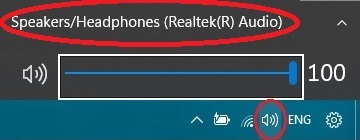 OR OR  If you only have one audio device or changing the audio device didn't help, Try to install a Virtual Sound Card driver: To do that, Download Virtual Sound Card Driver (just press the Orange Windows download button on VB-CABLE Virtual Audio page). and proceed with the following steps: After running the VBCABLE_Setup_x64.exe installer and installing the Virtual Sound Card driver (by pressing the "Install Driver" button) simply exit the application screen. Then, check to ensure that the VB-CABLE Virtual Sound Card is set as your default audio device by following these steps: a) Left-click on the sound icon located in the taskbar and choose "Open volume mixer". b) In the "Output Device" drop-down list, you will see the name of the currently selected audio device. c) Ensure that the CABLE Input (VB audio Virtual cable) Sound Card is selected as the default audio device. d) If it's not selected as the default device, choose it from the audio devices drop-down list. Then try to mirror the audio again to see if the issue is resolved. If you still have issues, just contact us. |
While AirPlay mirroring a movie, I see lags/latency in transmitted movie on my TV. Is there anything I can do?See answer to AirMyPC takes too much CPU. Is there anything I can do? question. Especially pay attention to the Network load and the Distance sections. |
Where can I find and read AirMyPC Installation Guide?AirMyPC Installation Guide about how to Mirror Windows to Apple TV can be found here. |
While mirroring, sometimes mirrored stream quality decreased. Why?v4.0 and above have a handy feature you can find in the AirMyPC settings screen called "Enable performance optimizations...". When this option is enabled, AirMyPC senses your network speed and load, and when it detects that the network is loaded or has become slower, AirMyPC automatically lowers the stream bitrate and resolution to help prevent or reduce lag and latency.When AirMyPC senses that your network is less loaded, it will start increasing the stream bitrate and resolution again. |
When I mirror my device to my TV, the image appears too dark, too bright, or the colors look off. What's causing this?This issue might be caused by High Dynamic Range (HDR) being enabled on your device.Here's how to disable HDR on Windows: Press the Windows key and search for "Display settings." Click on "Display settings" to open the menu. Scroll down and click on "Advanced display settings." Under "Choose a display," select your main display (the one you're mirroring to). Under the “Brightness & color” section, click the HDR setting. Turn off the “Use HDR” toggle switch. After disabling HDR, try mirroring your device again. The image should now appear with normal brightness and colors. |
What does the Education Interactive Tools Suite add-on do? Must I purchase it if I just want AirMyPC?The Education Interactive Tools Suite is an optional add-on that lets you draw on your desktop or on any other open window.You can draw on your computer screen using one of several interactive tools, such as the pen tool or one of the shape tools (circle, rectangle, arrow, chat bubble, etc.), turning your TV screen into an interactive whiteboard. You can choose to draw with opaque or transparent colors. You'll also have access to the eraser tool, the color picker tool, an undo option, and more. You can type text using the text tool. You can also save your work as .BMP or .JPEG files. And of course, with the help of AirMyPC, everything you draw or type on your computer screen is sent to your Apple TV/Chromecast and reflected on your TV screen (as shown in the TV image below). To open the Interactive Tools Suite, start screen mirroring, then click the AirMyPC icon and choose "Open Interactive Tools Suite". 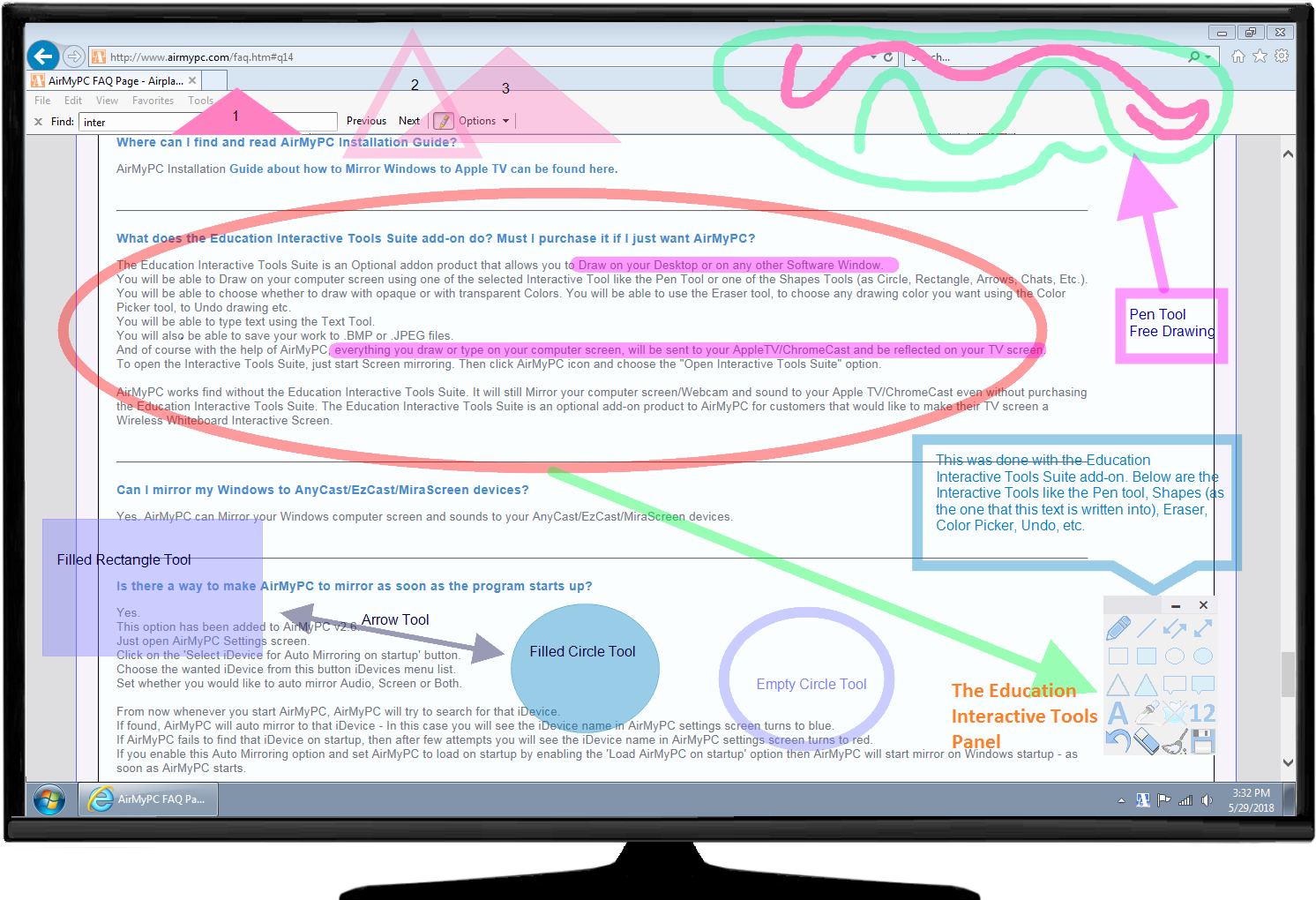 AirMyPC works fine without the Education Interactive Tools Suite. It will still mirror your computer screen/webcam and sound to your Apple TV/Chromecast even without it. The Education Interactive Tools Suite is an optional add-on for customers who'd like to turn their TV screen into a wireless interactive whiteboard. |
Should my Apple TV/Chromecast be wired connected to the router or connected wirelessly to my Wi-Fi?Your Apple TV/Chromecast can be connected to the router either via a wired (Ethernet) connection or over the same Wi-Fi network your computer is using.However, a wired connection is recommended: connecting your Apple TV/Chromecast to the router via Ethernet will generally provide better, more stable streaming performance than a Wi-Fi connection. |
Can I install and run AirMyPC on my Mac computer?No. AirMyPC can only be installed on Windows.macOS already includes built-in AirPlay streaming capabilities, so there is no need for third-party software to stream from a Mac to an Apple TV via AirPlay. Windows, on the other hand, does not include built-in AirPlay streaming capabilities - which is exactly the gap AirMyPC fills. |
My Apple TV is set to require a password to AirPlay. Does AirMyPC support that?Yes. AirMyPC supports both the "Password" and "On-Screen Code" AirPlay security options.When you start streaming to an Apple TV protected this way, AirMyPC will prompt you to enter the AirPlay password or on-screen code - just as it would if you were mirroring from an iPhone or iPad to that same Apple TV for the first time. Once entered correctly, AirMyPC will connect and begin mirroring normally. You will only be prompted again if the Apple TV's password or on-screen code changes, or if you connect from a new AirMyPC installation. |
We have lots of Apple TVs in our organization and sometimes AirMyPC does not show all of them / sometimes when we switch from Ethernet connection to Wifi it does not find new Apple TVs / and in anyway the List of Apple TVs is to long. Also: Multi-casting (mDNS) is turned off on our campus network so AirMyPC does not find any Apple TV/Chromecast to connect to. Any solution?Yes. Simply configure AirMyPC to disable mDNS discovery in the settings, and add your Apple TV/Chromecast IP addresses to the DirectConnect list.In this case, it is recommended to assign a static IP address to your Apple TV/Chromecast so that it does not change when the network restarts. More information about the DirectConnect feature can be found here: How to mirror via AirPlay/Cast without using the mDNS/Bonjour service. |
We want to install AirMyPC on all our company's computers. Do you have a bulk/mass/Single-Click-Installer option which allows us to Install, set and register AirMyPC using a single click install per each computer?Yes.This lets you to install AirMyPC using pre-configured settings file. Once you run the Single-Click install file, Installer silently installs AirMyPC (without any wizard installation screens), runs and registers it using the settings (DirectConnect IP list, IP Filter List, Mirroring Quality, etc.) and the registration key you have set into the pre-configured settings file. In other words, Installing, Setting and Registering AirMyPC is done by a Single-Click per each computer you would like to install AirMyPC. You will also be able to put AirMyPC settings file in a remote shared folder in your Network so any settings change you make to this settings file will be reflected on all other computers on your network that run AirMyPC. To do that, please download mass files from here: Click to download Bulk/mass/Single-Click-Installer Zip file That Zip file contains 2 files: ===settings.txt=== The first is settings.txt. You can use this file to set all the desired options, including the registration key. When you install AirMyPC, the installer checks whether a file named settings.txt exists in the same folder as the installer. If that settings.txt file exists, AirMyPC will be installed using the settings in that file. If you open settings.txt, you'll see that most setting values are 0 or 1. For example, setting: capture_mouse_cursor:1 enables the "show mouse cursor" option. capture_mouse_cursor:0 disables that option. Setting: run_after_install:1 tells AirMyPC to run after installation. Setting: run_after_install:0 tells AirMyPC to register itself using the key you provided (if any) and then exit. If your Apple TV is password-protected, you can set the password like this: password:abcd (assuming abcd is the password). If you don't use mDNS discovery and want to manually set Apple TV IPs, set this in the settings file: enable_mdns_discovery:0 (it's set to 1 by default) For the list of IPs, you can set the DirectConnect IP list like this: direct_connect_ip_list:192.168.2.4 192.168.2.5 192.168.2.8 [desired ATV name 192.168.2.10] [Office 192.168.2.11] {Group1 [desired ATV name1 192.168.2.12] [Office2 192.168.2.13] [Office3 192.168.2.14]} If your registration key is XYZ, set it in the settings file as: key:XYZ (replace XYZ with your actual registration key). As explained, if you place the AirMyPC.exe installer and the settings.txt file in the same folder, running the installer will install AirMyPC and launch it. When AirMyPC starts, it will read all settings from that file. If you provided a registration key, AirMyPC will use it to register itself automatically (you'll receive a confirmation email for each registration). Keep in mind that there will be two internet connections per install. The first happens from the installer itself, as it always does when installing AirMyPC. The second happens from AirMyPC itself, for the one-time activation using the key you set. Please make sure your firewall allows this. ===run.bat=== The second file in the zip is run.bat. This batch file runs the installer in silent mode, with no visible screens, so you won't need to click through Next, Next... Just make sure to place it in the same folder as the AirMyPC.exe installer and the settings.txt file. ===summary=== 1) Set the desired options in the settings file. 2) Put settings.txt, run.bat, and the AirMyPC.exe installer in the same folder. 3) Run run.bat - it will handle everything for you. This needs to be repeated on each computer where you'd like to install and register AirMyPC. ===Remote Settings file option=== You can also configure AirMyPC to fetch the settings file from a remote location on your LAN every time it starts - this lets you apply a settings change (such as updating the DirectConnect IP list) across all computers at once. For this to work, apply_settings_for_all_users in the external settings file must be set to 1: apply_settings_for_all_users:1 (apply_settings_for_all_users ensures that all Windows accounts on the computer get their settings from the settings file, not just the account AirMyPC was installed from.) Set network_shared_settings_file_location to the remote settings file's location (just the path), for example: network_shared_settings_file_location:\\remote computer name\shared folder name\ I.e., without settings.txt network_shared_settings_file_version is the version of the setting file. Start it with 1. Also make sure to copy the external setting file to that shared folder (you can remove the key from the remote file since it is not needed) After you make the one-click-install, whenever AMPC starts, it will read the remote setting file. If version on the remote setting file (the value you set in network_shared_settings_file_version) is bigger than local user setting file version then it will take all setting from the remote setting file - that is why whenever you make a change into the remote setting file, you need to increase the network_shared_settings_file_version by 1. If versions of local setting file and remote setting file are the same then AMPC ignores that remote file. This way it will overwrite the local setting file (and the changes local user makes to the settings) only if you really make a change the remote setting file version. Remember, AirMyPC reads the remote settings file only when it starts. It may take more time for AirMyPC to start since on startup it accesses remote location now. ===Remote Settings file summary=== So to sum add these to the setting file you use with your installer: apply_settings_for_all_users:1 network_shared_settings_file_location: network_shared_settings_file_version:1 Set network_shared_settings_file_location with the location as: \\remote computer name\shared folder name\ Do not forget to put the same external setting file you use with the installer into the shared folder (you can remove the key from it since it is not needed). * Note that you need to purchase a license key for each computer you install AirMyPC. |
My Windows Firewall blocks AirMyPC from connecting my Network. How can I set AirMyPC to connect through Windows Firewall?To allow AirMyPC to communicate through Windows Firewall:1) Open Windows Firewall by clicking the Start button, and then clicking Control Panel. In the search box, type firewall, and then click Windows Firewall. 2) In the left pane, click Allow a program or feature through Windows Firewall. 3) Click Change settings. 4) Select the check box to the left of "AirMyPC - Mirror your ...", and select the two check boxes to the right of "AirMyPC - Mirror your ..." (As you can see in the Image below) and then click OK to save. 5) Allow the Bonjour service as well (only in case you see Bonjour service in the list). 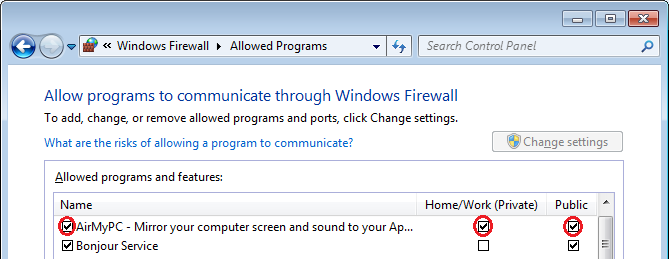 |
I have Windows Vista/7/8 and some applications, such as Kodi, are mirrored as a black screen. How can I solve this?On Windows Vista/Windows 7/8, AirMyPC disables the Aero theme by default for better performance.This can cause AirMyPC to mirror a black screen for some applications that use layered windows. To solve this: 1) First, make sure you have one of the Windows Aero themes set (right-click desktop > Personalize > choose one of the Aero themes, such as 'Windows 7'). 2) Set AirMyPC to not disable Aero. To do that: a) Open the AirMyPC settings screen. b) Hold the CTRL key and, while holding it, click the support button in the AirMyPC left menu. This should open the AirMyPC settings folder. c) There, open the settings.txt file and change the value of disable_aero to '0', like this: disable_aero:0 d) Save the settings file. e) Right-click the AirMyPC tray icon and choose Exit. f) Re-run AirMyPC and mirror. |
Netflix is mirrored as a black screen using my Internet Browser. How can I solve this?Netflix (and similar services) employ technologies to protect their content from unauthorized copying and distribution.This can prevent our software from correctly capturing the video stream. Disabling Browser Hardware Acceleration in your browser settings might allow our software to capture the Netflix stream. Chrome Browser: Open Chrome and click the three-dot menu in the top right corner of the browser window. Select the three-line (hamburger) menu next to Settings. Click on System in the left-hand panel. Turn off the toggle switch next to Use hardware acceleration. Click the Relaunch button to restart Chrome with hardware acceleration disabled. Firefox Browser: Open Firefox and Click on the hamburger menu (three horizontal lines) in the top right corner of the browser window. Select Settings from the menu. In the Settings window, click on General in the left-hand panel. Scroll down the General settings and find the Performance section. Uncheck the box next to Use recommended performance settings. This will reveal additional settings. Uncheck the box next to Use hardware acceleration when available. Restart Firefox to apply settings Microsoft Edge: Open Microsoft Edge and click on the three dots menu (ellipsis) in the top right corner of the browser window. Select Settings from the menu. In the Settings window, click on General in the left-hand panel. Click on System in the left-hand panel. Under System, you'll see the toggle switch for Use hardware acceleration when available. Turn it off. Click the Restart button to restart Edge with hardware acceleration disabled. Using this workaround to capture content from streaming services might not be permitted under copyright laws and the Terms of Service of those services. Regulations and user rights vary significantly by country. We strongly recommend that you consult the relevant laws and terms of service to ensure your use of captured content complies with all applicable regulations in your jurisdiction. We cannot be held responsible for any legal issues arising from your use of this workaround. Please be mindful of copyright laws and the Terms of Service of streaming platforms. It's your responsibility to ensure you're using any screen capturing software in a legal and ethical manner. |
Netflix Windows app is mirrored as a black screen. How can I solve this?Just open Netflix from your internet browser (IE/Firefox/Chrome, etc.) and view it from there instead of using the Netflix Windows app.If you still get a black screen when mirroring through the browser as well, please look here. |
I have Webroot SecureAnywhere Antivirus installed and everything is mirrored as a black screen. How can I solve this?Webroot blocks any application, including AirMyPC, from capturing the desktop.To solve this, simply set Webroot to allow AirMyPC to capture your Windows desktop. To do that: 1) Double-click the Webroot tray icon. 2) On the right side of Webroot, click the Settings icon  next to the 'Identity protection' option.
3) On the new screen, click the 'Application Protection' tab. 4) Set the "Allow" or "Protect" option for the AirMyPC.exe process. |
My computer has two screens connected. Can I choose which screen to AirPlay Mirror?Yes - if AirMyPC detects more than one screen attached to your computer, it will let you choose which one to mirror from. |
My computer has two screens connected. Can I work on one screen and AirPlay Mirror the other?Yes.If you have Windows 7 or above, from AirMyPC v1.4.7.1 onward you can do this by selecting the "Extend Your Desktop" option in the AirMyPC tray menu. Then drag the application you'd like to mirror to the second screen and set AirMyPC to mirror that second display. While AirMyPC mirrors your secondary screen, you can keep working on your main screen. For older Windows versions, just set the Windows "Multiple displays" option to "Extend these displays". (To do that: right-click the desktop, click 'Display settings', and set the Multiple Displays option to "Extend these displays".) |
My computer has only one screen connected. Can I work on one screen and somehow tell AirMyPC to AirPlay Mirror another virtual screen (I.E to extend my Desktop to Apple TV or Chromecast)?Yes, you can!Here's how to use Apple TV as a second monitor for your PC: To create a "virtual" screen that acts as an extended display for your desktop: If you have Windows 7 or above, you can do this by selecting the "Extend Your Desktop" option in the AirMyPC tray menu. After selecting the "Extend Your Desktop" option, AirMyPC will create a virtual display and extend your desktop onto it. Then drag the application you'd like to mirror onto that secondary virtual display. While AirMyPC mirrors that secondary virtual screen, you can keep working on your main screen. Another option, instead of the above, is to set AirMyPC to mirror only a specific window/application (using the "Mirror Specific Window" option). Then drag and resize that window to fit the right side of your screen, and work on the left side yourself. |
My computer has only one screen connected. I selected the "Extend your desktop" option for creating a new virtual display but got error message: "AirMyPC failed to create a Virtual Display".The full error you got is: "AirMyPC failed to create a Virtual Display. This may happen when your computer does not have a free (unused) analog output such as a VGA or DVI-I port."For AirMyPC to create a new virtual display (assuming, again, that you have only one physical display attached to the computer and would like another virtual one you can also mirror to your device), you need a free (unused) analog output such as a VGA or DVI-I port. DVI-D and HDMI are not analog, so they do not natively support creating this extra virtual display - which is why you get this error. That said, some graphics cards include an analog output but still don't support creating a virtual display. In this case, or if you don't have an analog port, one way around this is to purchase a USB-to-VGA converter. This will make your computer think it has a free analog VGA output. Just search eBay/AliExpress for a 'Ghost Virtual Display Adapter' (should cost around $2-$3). |
AirMyPC Mirrors my screen very well to my Apple TV/Chromecast but it does not mirror Audio. Why?There can be four main reasons for this:1) Your audio drivers aren't installed, and you have Windows' default audio drivers installed instead, which in some cases don't support audio playback. Installing your audio device's proper drivers should solve this. 2) Your firewall (antivirus firewall or Windows Firewall) is blocking some of the ports AirMyPC uses to mirror audio. Since these ports are chosen dynamically, you should allow AirMyPC to use all ports through your firewall. 3) Your sound card output is set to more than 2 channels. Click here to read how to change your sound card's output settings. 4) If none of that helps, try mirroring audio and then unmuting your PC speakers (AirMyPC mutes them by default) - if that makes the audio audible on the TV but you don't want to hear it on both the TV and your computer, please look here. |
AirMyPC Mirrors Audio but not in a correct pitch. It sounds as if people are talking under water or very slowly. Any fix?Apple TV streams at 16-bit, 44100Hz, 2 channels.Chromecast streams at 16-bit, 48000Hz, 2 channels. If your sound card uses a different sample rate or channel count, AirMyPC should detect that and convert the sample rate to 16-bit, 44100Hz, 2 channels (or 16-bit, 48000Hz, 2 channels for Chromecast). In rare cases (usually when using Boot Camp to run Windows on a Mac), AirMyPC doesn't recognize this and, as a result, doesn't perform any sample rate conversion, which causes the incorrect pitch you're hearing. To fix this, just set your sound card's sample rate to 16-bit, 44100Hz, 2 channels (or 16-bit, 48000Hz, 2 channels for Chromecast). To do that: Open Windows Control Panel, type "Manage Audio Devices", and select it. In the Playback tab, double-click the default speakers (if you're running Windows on a Mac via Boot Camp, select the digital audio option instead of speakers). Go to the Advanced tab, choose 16-bit, 44100Hz, 2 channels (or 16-bit, 48000Hz, 2 channels for Chromecast), then click OK to save. |
Is there any way to make the quality of the mirrored desktop even better?Yes. The best way to improve output quality is to reduce or prevent the image scaling AirMyPC does to match your computer screen size to the resolution of your Apple TV/Chromecast.Click here for instructions. |
Can I AirPlay Mirror Audio only (without mirroring my Desktop)?Yes.AirMyPC lets you mirror screen only, audio only, or both at the same time. |
AirMyPC disconnects from my Apple TV/Chromecast every X minutes, what should I do?Please try restarting your Apple TV (Apple TV 4/4K: Settings, System, Restart; Apple TV 3 and earlier: Settings, General, Restart). Once your Apple TV has reloaded, wait a minute, then retry mirroring with AirMyPC.If that doesn't help, and if applicable, turn off WMM in the QoS settings on your router/wireless LAN controller. If that still doesn't help, try turning off passcode security and Conference Room Display, both located under Settings > AirPlay. |
Can I mirror my Windows to AirPlay 2–enabled TVs?Yes. AirMyPC can mirror your Windows computer screen and sound to any TV with built-in support for AirPlay 2 (such as newer Sony, Samsung, LG, or VIZIO TVs). |
Can I mirror my Windows PC to non-Apple TV devices such as AnyCast/EzCast/MiraScreen/Roku TV?Yes. AirMyPC can mirror your Windows computer screen and sound to your AnyCast/EzCast/MiraScreen/Roku TV device. |
Is there a way to make AirMyPC mirror as soon as the program starts up?Yes.This option has been added since AirMyPC v2.6. Just open the AirMyPC settings screen. Click the 'Select Device for Auto Mirroring on Startup' button. Choose the desired device from that button's device list. Set whether you'd like to auto-mirror audio, screen, or both. From now on, whenever you start AirMyPC, it will try to search for that device. If found, AirMyPC will auto-mirror to that device - in this case, you'll see the device's name in the AirMyPC settings screen turn blue. If AirMyPC fails to find that device on startup, after a few attempts you'll see the device's name in the AirMyPC settings screen turn red. If you enable this auto-mirroring option and also enable 'Load AirMyPC on startup', AirMyPC will start mirroring on Windows startup - as soon as it launches. |
Is there a way to mirror a Windows PC to an Android phone or Amazon Fire TV?Yes, that's possible. Here are step-by-step instructions for mirroring a Windows PC to an Android device:You can use AirMyPC to mirror your Windows computer screen to your Android phone/Amazon Fire TV, but for that you'll need to download a third-party app to your Android device/Amazon Fire TV that turns it into an AirPlay receiver. You can use the AirPlayMirror app for Android phone/Amazon Fire TV, which has been tested and works perfectly with AirMyPC. In this case, AirMyPC running on your Windows computer will AirPlay mirror your Windows PC to the AirPlayMirror app running on your Android phone/Amazon Fire TV. |
My PC screen is off and while mirroring Windows 10 when the UAC (User Account Dialog) is shown, TV screen becomes grey and I do not see the UAC dialog. I need to see it so I will be able to click the 'Yes' button. What can I do?Windows 10 doesn't allow AirMyPC (or any other program) to capture the screen while the UAC dialog is shown, so AirMyPC turns the TV screen grey until you close that dialog.To solve this, you have two options: Option 1: Click Start. Start typing "regedit" (without quotes). Navigate to the key: HKEY_LOCAL_MACHINE\ Right-click "PromptOnSecureDesktop" and click Modify. Enter 0 in the Value data box and click OK. Exit Registry Editor. This restores the Windows 7-style UAC dialog, which AirMyPC can capture. Option 2: While the UAC dialog is shown, just press Tab twice, then Enter. This simulates clicking the 'Yes' button. |
Copyright © 2014 - 2026 AirMyPC.com. AirPlay/Apple TV/iPhone/iPad/Mac are trademarks of Apple Inc., registered in the U.S. and other countries. Google Cast/Android/Chromecast are trademarks of Google Inc. Privacy Policy